Slazzer

Image cutouts explained

What is slazzer background remover, and what does it do?

If you are asking what is slazzer background remover, the short answer is an image cutout tool: it separates a photo’s main subject from its surroundings. Slazzer is associated with background removal, but the quality of any cutout depends on the photo and the edges you need to preserve.

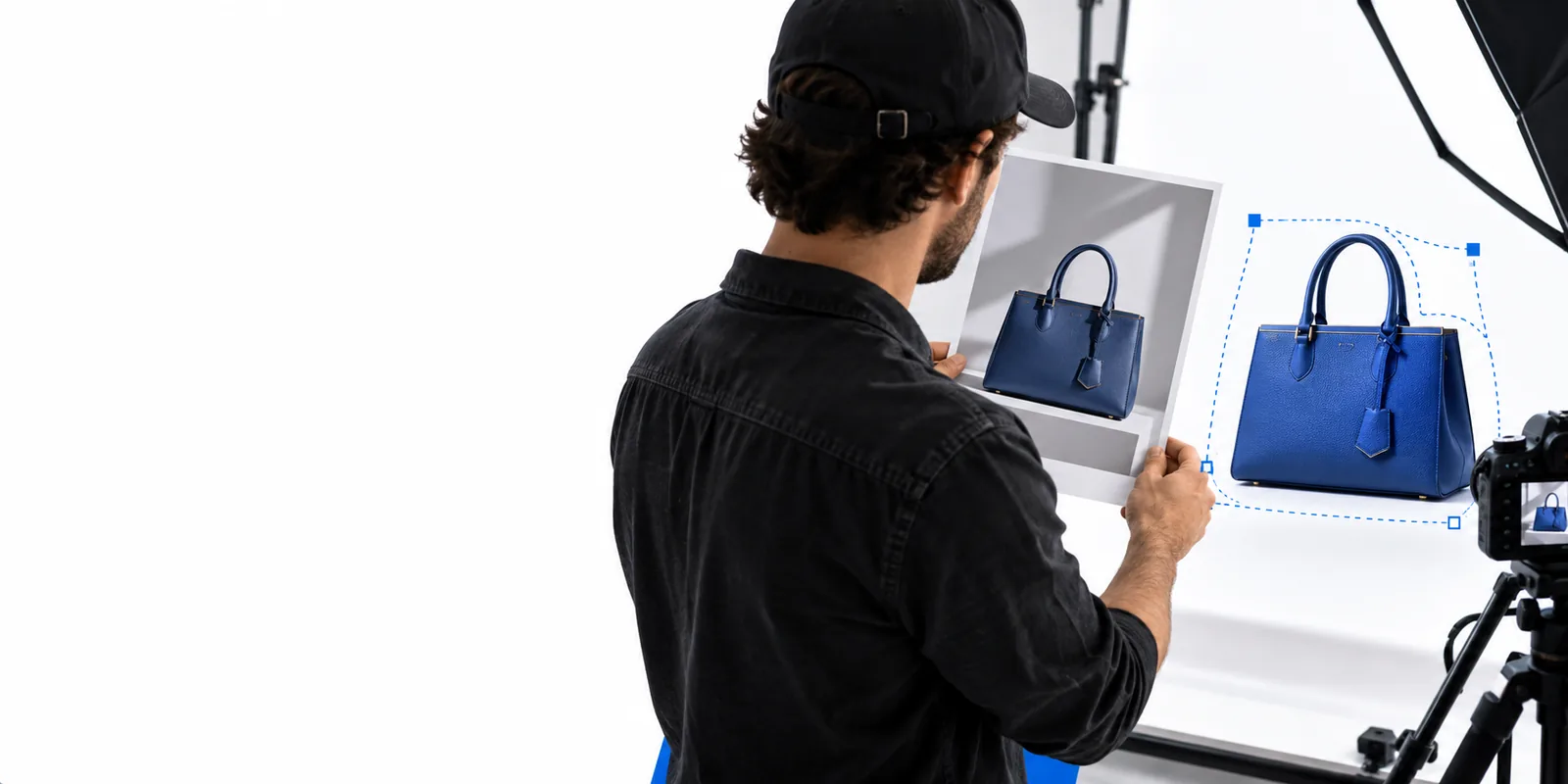
Example imagery illustrating a subject separated from its background

A background remover helps turn a photo with a distracting setting into a subject-focused image. These related guides cover the task, the broader tool category, and editing after a cutout.

Three mechanisms and their limits

A useful way to understand the process is to look at the decisions behind a cutout: finding the subject, tracing its boundary, and judging the result. None is guaranteed to be perfect.

  • Subject selection can be ambiguous

    A background remover must distinguish the intended subject from the rest of the photo. When several people or objects overlap, that distinction may not match what you meant to keep.

    WorkaroundStart with a photo that clearly frames the subject, then inspect whether every intended person or object remains.

  • Fine edges can lose detail

    Hair, fur, lace, leaves, and translucent material have boundaries that are harder to separate than a solid outline. A cutout may clip details or retain bits of the old background.

    WorkaroundCheck the outline at full size, especially where pale details meet a similarly colored setting.

  • A cutout is not a complete photo edit

    Separating a subject does not automatically fix blur, lighting, reflections, or shadows. Placing that subject over a new setting can make those differences more noticeable.

    WorkaroundReview the image in its intended context and plan separate edits if its lighting or composition needs work.

Step-by-step

Think of Slazzer as part of a short image workflow rather than a guarantee that every photo will be ready on the first pass.

  1. 1

    Choose a suitable source

    Pick a photo with the subject in focus and enough contrast to see its outline. Before removing anything, decide whether the whole person, product, or group needs to remain.

  2. 2

    Separate subject and surroundings

    A background-removal workflow identifies the subject and creates a cutout. Treat that first result as a draft, particularly around hair, transparent objects, and gaps between overlapping shapes.

  3. 3

    Inspect the final context

    Look for missing details and leftover background along the edge. Then check the cutout against its intended replacement or layout; a boundary that looks fine alone may stand out on a contrasting color.

Limits and edges in real use

The best source photo depends on where the cutout will appear. These common scenarios show what to examine before calling the result finished.

Product photographer

A small object needs to stand apart from a busy tabletop, but its reflection and shadow help it look grounded.

Keep the product outline intact and decide separately whether its shadow belongs in the final image. For a task-focused walkthrough, see the linked guide.

slazzer remove bg

Portrait editor

A person needs a cleaner backdrop, while loose hair and clothing edges remain visible.

Inspect fine strands and fabric before placing the portrait on a new color. The background-remover guide discusses the core cutout task in more detail.

slazzer background remover

Content designer

A cutout must fit a poster or social graphic whose lighting differs from the source photo.

Check the boundary first, then assess whether color and composition need separate attention. The photo-editor guide helps distinguish those jobs.

slazzer photo editor

Continue with an image workflow

Start with the image you want to improve

If Slazzer’s background-removal concept fits your project, explore the available image tools and check their current capabilities before committing to a workflow. Use a clear source photo and review the result where it will actually appear.

Explore image tools
  • Begin with a clearly framed subject
  • Inspect fine edges before reuse
  • Check the result in its final layout

Frequently asked questions

Slazzer is associated with separating the main subject of a photo from its background. People use that kind of cutout when they want to place a subject in another layout or reduce distractions around it. The result still needs checking before publication.

That depends on how the shadow appears in the source image and how the cutout handles its boundary. A shadow can be useful for making a product look grounded, so inspect it rather than assuming it should always stay or go.

Do not assume any background remover will preserve every fine or translucent edge. Hair, glass, and sheer fabric can blend into the original setting. Zoom in and judge whether the cutout is suitable for your intended background.

No. Background removal focuses on separating the subject from its surroundings; it does not by itself resolve every issue with lighting, sharpness, or composition. Those may require additional decisions after the cutout is made.

Edit an image
Edit an image